Image enhancement and upscaling
Enhance Product Images with AI in MONA
Before upscaling a low-resolution product image, decide whether you need more pixels, a detail review, or a different composition. MONA's Enhance workspace lets you import an original, choose the current enhancement settings, review the cost, and compare a separate result.
A recorded example at the original size
The source below was generated in MONA on October 4, 2026 from an original text-only still-life brief, without reference images. It shows an unbranded green glass bottle and limes. It is AI-generated demonstration artwork, not a photograph of a real product or a customer case.
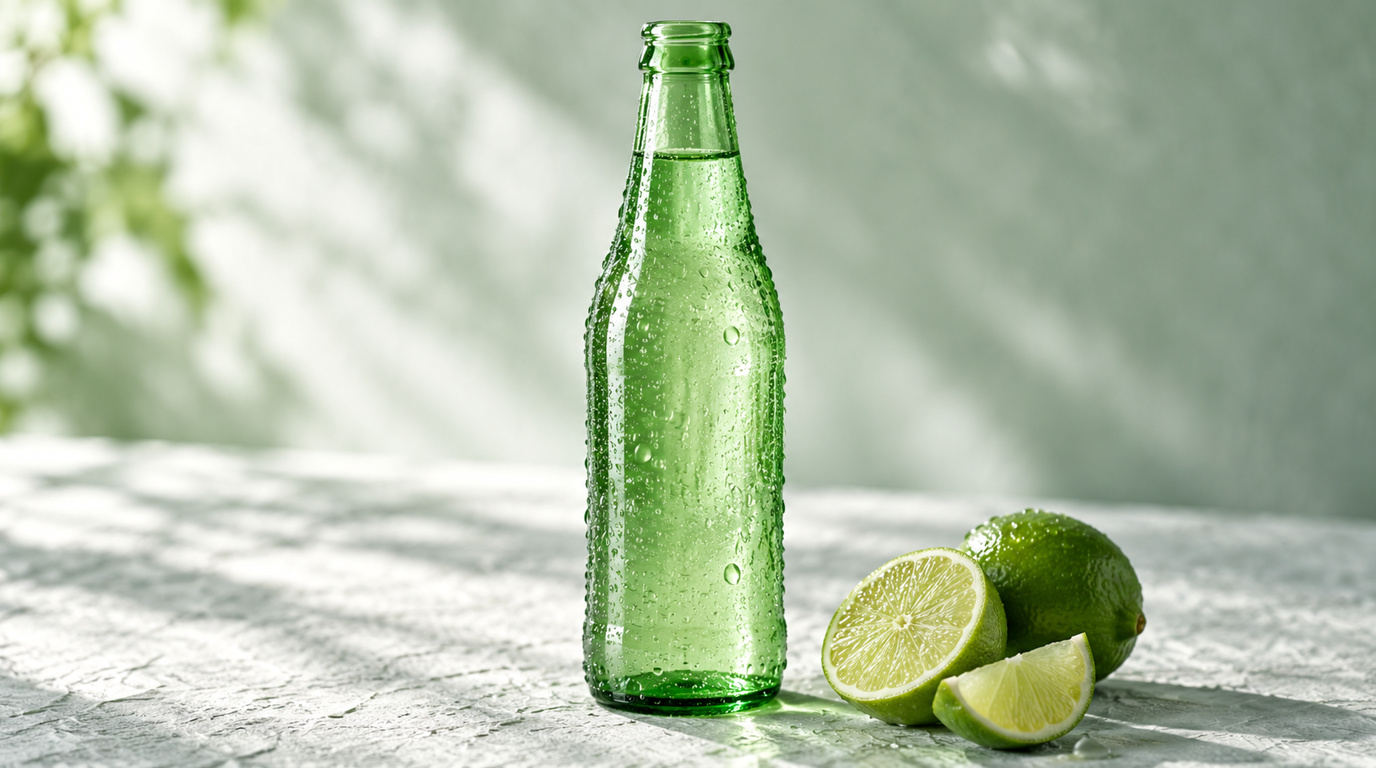
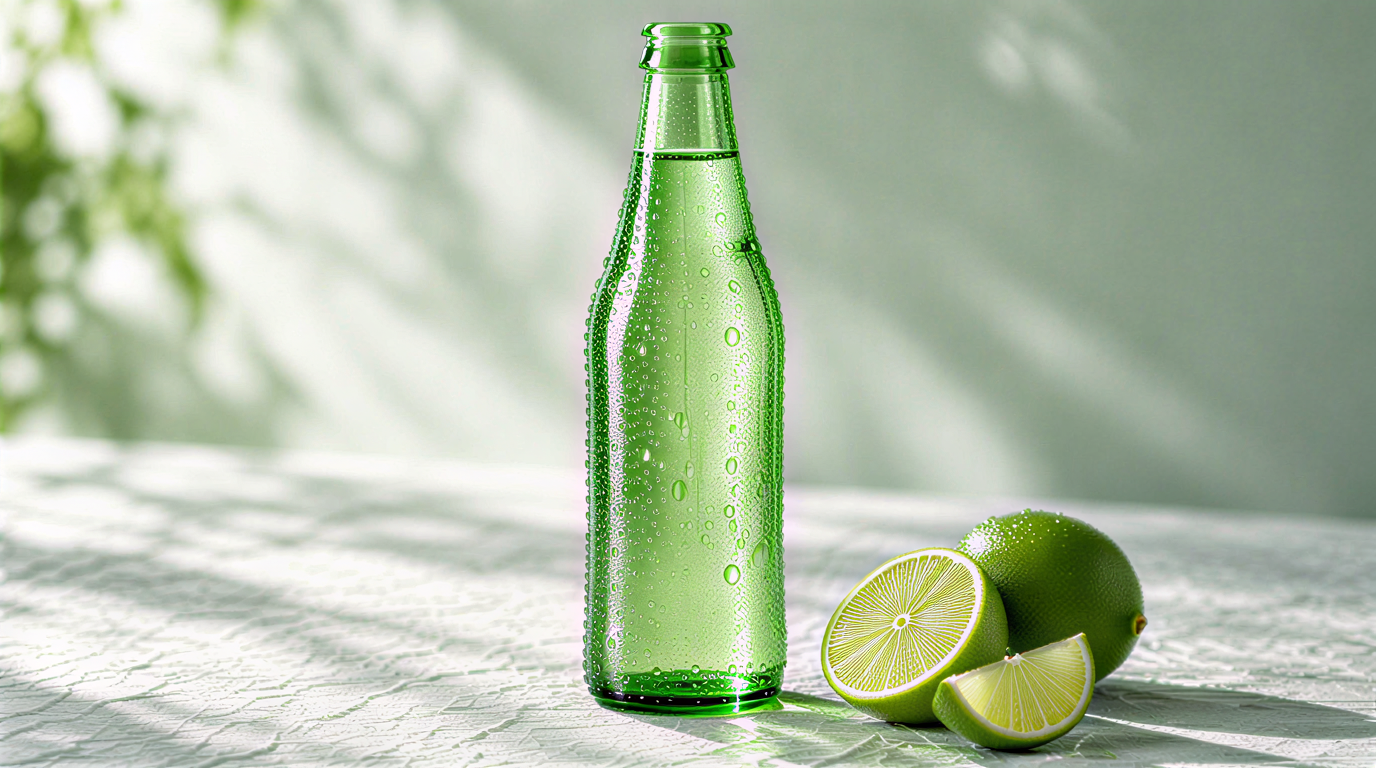
Both passes used SeedVR2 at 1×. They completed and the final PNG was downloaded and checked. This example shows original-size enhancement and delivery. It does not demonstrate 2× enlargement of a low-resolution product photograph or prove that reconstructed detail matches a real bottle.
1. Choose a useful original
Use a photo or illustration you own or have permission to process. Keep the original. Choose the highest-quality source you actually have, rather than a screenshot of a thumbnail.
For a product photo, identify what must remain accurate: the silhouette, label wording, logo, color, material, finish, and the number of objects. If the source cannot show a small detail, a model may invent it.
Open Enhance and sign in when required. Choose Image enhancement, then Import file or Asset library. Read the current format and size requirements before importing.
2. Choose the output you need
Select an available enhancement model. Use the settings it offers and check the estimated output dimensions. If your goal is enlargement, choose a supported size or scale larger than the source. A 1× setting processes at the original size, as in the example above.
Compare the planned width and height with the dimensions required for your intended use. “Looks larger on screen” is not an output-size check; use the completed result's actual dimensions.
Keep a short plan alongside your source. This worksheet is an example to adapt, not an import file:
Source: my permitted original product photo
Use: the image size required by my product page
Source dimensions: read from the original file
Target dimensions: check the selected model's planned output
Keep accurate: outline, color, material, logo, label, object count
Review: edges, fine texture, lettering, artifacts and actual output size
Cost: confirm the current credits before enhancing
If you need to change the background or scene, use a reference image brief first. If the wording itself must change, follow the image text-editing guide rather than expecting an upscaler to correct the text.
3. Review the current cost before starting
Wait for the credit amount to finish calculating. Check the chosen source, model, settings, and output dimensions, then use the enhancement button that shows the charge. If the source, settings, or price changes, review the updated amount before proceeding.
Each recorded October 10 enhancement pass cost 2 credits. These historical charges describe those two passes only; they are not a current price offer. Today's cost follows the selected model and settings. The pricing page shows current credit packages.
Opening this guide or the Enhance workspace does not submit an enhancement. Keep track of the existing task if processing or delivery is still pending. Use its status and refresh controls rather than submitting the same image again to check progress.
4. Compare the delivered file with its source
When the result appears, use Slider, Side by side, or Single view. Zoom, pan, and Fit help you inspect the selected image. Choose Original file detail when offered, or download the original files for a closer inspection.
- Read labels at full detail. Sharper-looking letters can still be the wrong letters.
- Check the silhouette, cap, handle, corners, and other identifying geometry.
- Look for invented texture, halos, repeated patterns, or excessive smoothing.
- Compare material and color in the image's intended context.
- Verify the completed width and height before exporting it for your product page.
For the bottle illustration, useful review points include the mouth of the bottle, transparent edges, water droplets, and lime texture. A pleasing reconstruction of these details is still a visual interpretation; this demonstration has no physical product to authenticate it against.
What enhancement cannot prove
More pixels do not recover information that was never captured. Enhancement may reconstruct missing detail, so inspect product-specific text and features yourself. The same settings can produce different results on a different source.
Keep the original alongside the result and choose the version that meets your actual use. A sharp image is not evidence of product authenticity, sales performance, print suitability, or a commercial-use license.
Import your source, check the planned output, and review the current charge.
Prepared on behalf of MONA with AI assistance. The illustration and enhancement result come from recorded local MONA runs. The example preserves the original dimensions; no product-photo enlargement or quality guarantee is presented.