Image text editing
How to Change Text in an Image with AI in MONA
A flattened poster or product graphic may contain text you need to replace. MONA can recognize text regions, let you enter the replacement, and create an edited image while retaining the source.
A real poster edit: ORIGINAL 2026 → MONA READY
In a local MONA demonstration completed on September 8, 2026, an original TextLab poster was recognized and its second line was changed from “ORIGINAL 2026” to “MONA READY” in Quick mode. The delivered image retained the source's 3840 × 2160 dimensions and appeared in a separate result node.
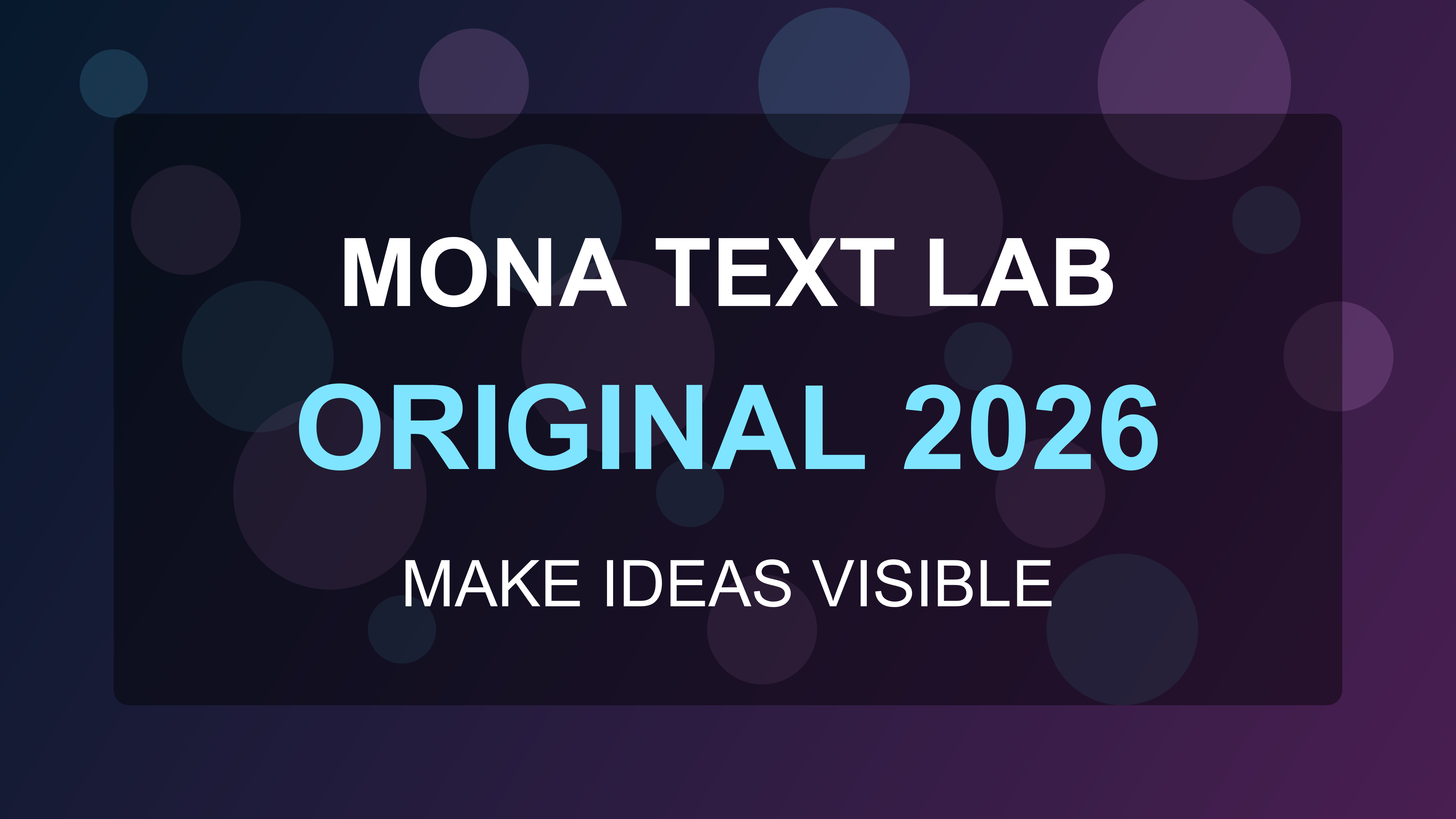
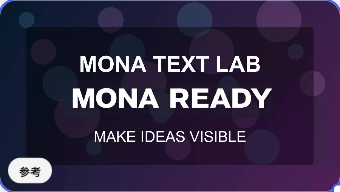
The original poster stayed available after the edit. This demonstrates one straight-text replacement; it does not establish matching results for curved packaging, complex perspective, every font, or every language.
1. Prepare a source you can check
Use an image you own or have permission to edit. Keep an original copy. Start with text that is large enough to read and a background whose details you can inspect afterward.
Open MONA Canvas, sign in when needed, and choose your project. Add or select a saved image node. If the image is not yet saved, finish that step before opening text editing.
For a product graphic, write down the exact approved wording first. Check spelling, units, punctuation, prices, and any brand permission yourself; a recognized region is not proof that its text is correct.
2. Review the recognition cost and locate the text
Select the image and choose Edit text. Review the displayed text-recognition charge before confirming recognition. Recognition and image generation are separate paid actions; check both charges for the work you are preparing.
When recognition finishes, click a text box on the image or its entry in the list. Compare the recognized writing with the original. If a small label or important line is missing, use a clearer source instead of assuming it will be edited.
3. Enter only the replacement you intend
Use Replace with for the chosen region. Keep other regions unchanged. Select Quick or Precise mode and adjust the offered typography controls only when needed. Typography is labeled Beta: the output font can differ from the original.
The TextLab demonstration used this edit plan. It is a record to adapt, not a file to import or a guarantee of the same output:
Source: my original, saved image
Target line: ORIGINAL 2026
Replacement: MONA READY
Processing mode: Quick
Other text: leave unchanged
Review: exact spelling; no old letters underneath; readable contrast;
        intact background; original image still available.
For your own graphic, replace both text lines in that plan with your actual source and approved replacement. A longer phrase may need different spacing or size; check the preview and the available controls.
4. Confirm the generation cost and inspect the result
Review the changed regions, selected mode, and current generation charge. Choose Generate edited image when they are correct. The result appears in a new image node, so you can compare it with the original.
- Read every replacement character, including punctuation and numbers.
- Inspect the old text area for leftover strokes, halos, or damaged texture.
- Check alignment, line breaks, contrast, and the neighboring text.
- View the result at the size you will use, then inspect the downloaded file.
If a request is still being checked, continue with its existing task status. Do not submit the same edit again merely because a result has not appeared yet.
What to check before using this on a product image
Flat, legible text is a clearer starting point than curved lettering, display fonts, reflections, or text in perspective. AI editing can reconstruct part of the surrounding image. Inspect logos, package shape, material, and other product details before publishing.
The September demonstration charged 4 credits for recognition and 10 for the edited image. Those are historical facts for that one run, not a current price offer. Use the recognition prompt and generation button for today's charges; see the current credit packages when you need credits.
If your goal is to design a new scene, start with the reference brief guide. If the image needs a different size or a detail review, continue with the enhancement guide.
Choose your image and review the recognition charge before editing.
Prepared on behalf of MONA with AI assistance. The poster and result preview come from a recorded local MONA demonstration. No customer work or guaranteed editing quality is presented.