Image creation guide
Before You Generate: Organize an AI Image Brief in MONA
A reference photo shows an object. It does not tell an image model whether you want to preserve that object, borrow its lighting, or redesign the entire scene. Before generating, make that decision explicit.
This guide shows how to prepare a small image brief in MONA: one reference, a clear instruction, and a short checklist for reviewing the result. The example is a plain ceramic mug photographed for a product page.
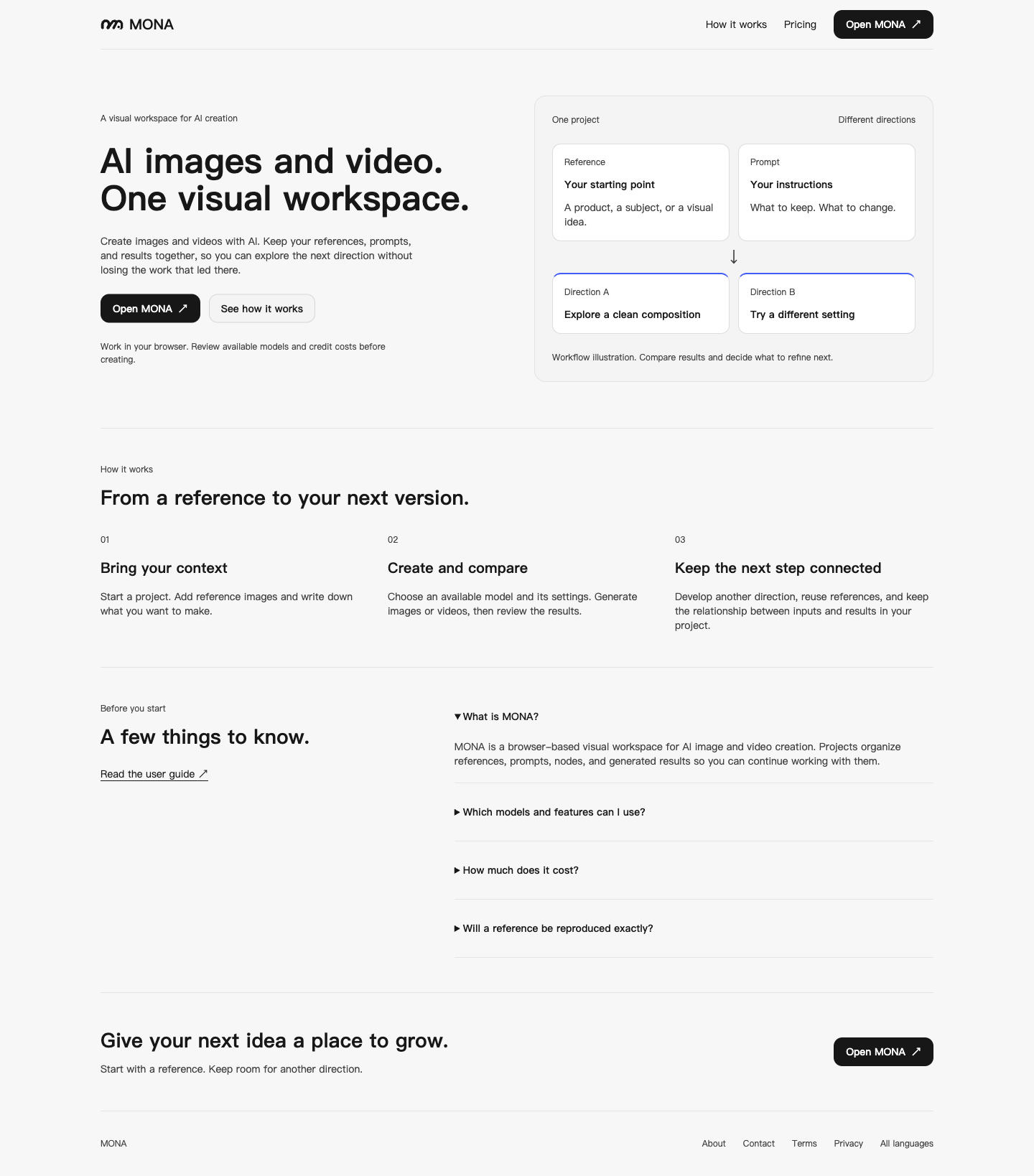
MONA is a browser-based visual workspace for AI image and video creation. Its projects keep references, prompts, nodes, and results together.
A planning worksheet, not a MONA import file or automatic workflow.
1. Write down the decision this image should help you make
Start with a specific purpose. For the mug example, the question could be: “Will a simple tabletop scene make the mug easy to recognize in a product thumbnail?”
That gives you something to judge. “Make it premium” leaves the intended composition, subject, and use unclear.
After signing in to MONA, open a project. You can keep the brief in a text node alongside the reference material. The MONA User Guide explains the current canvas and node controls.
2. Add one reference and explain its job
Use a photo you own or have permission to use. For this exercise, choose a photo that clearly shows the mug's outline, handle, and glaze.
MONA's guide describes adding an image by dragging a file onto the canvas. Image nodes hold uploaded references; text nodes can hold the accompanying visual instructions.
In your brief, write which facts the reference establishes. For example:
The reference defines the mug's shape, handle, and cream-colored glaze. The existing background is not part of the intended design.
Do not invent details that the photo cannot show. If a logo or surface detail matters but is unreadable, resolve that information before treating a generated version as accurate.
3. Turn the brief into a concrete prompt
Here is an illustrative prompt for a reference photo that actually shows a plain cream ceramic mug:
Create a product image using the attached mug reference.
Keep the mug's visible outline, handle shape, and cream-colored glaze.
Place one mug on a light stone tabletop against a plain warm-gray wall.
Use soft light from the left and show the entire handle.
Leave clear space around the mug so it reads at thumbnail size.
Do not add a logo, lettering, a saucer, or extra mugs.
The reference supplies the mug's appearance; replace its original setting.
This prompt has not been run for this article. It is a starting example to adapt to your own image, not a promised result. If your reference shows a different object or color, change the instructions to match it.
Keep a copy of the exact prompt in your project notes before making later revisions. You can use the accompanying brief template to record the reference, intended scene, and review criteria.
4. Review the actual inputs and cost
Select the intended reference for the generation you are preparing. Check that the prompt describes that reference and the scene you want.
Review the selected model, supported inputs, output settings, output count, and displayed credit cost before submitting. MONA's available models and options can change. This guide does not prescribe a particular model, price, or reference limit.
If the interface differs from a guide or screenshot, use the current controls and displayed settings. Avoid committing a generation while the intended inputs or cost remain unclear.
5. Judge the result against the brief
Once a generation finishes, compare it with the reference and your written goal. For the mug example, check:
- Is the mug recognizable from its silhouette and handle?
- Does the glaze still match the reference?
- Is the whole handle visible?
- Are there any invented logos, letters, or extra objects?
- Is the mug clear when viewed at the size you intend to use?
A visually attractive image can still fail one of these checks. Write down the specific mismatch before preparing another direction. For example, “Handle is hidden; next instruction should make its visibility explicit.”
MONA's image-node workflow supports using a generated image as a reference for another pass. Inspect that image before carrying it forward: an unwanted detail can become part of the next input. A reference guides generation; it does not guarantee exact reproduction.
Keep a useful record for the next pass
Save three short notes with the project: which reference you used, the instruction you submitted, and why you kept or rejected the result. That gives the next revision a clear starting point.
Explore MONA's English overview or open the User Guide for the current product controls.
Product tutorial prepared on behalf of MONA with AI assistance. No customer work, generated demonstration, or performance benchmark is presented in this article.